

License & Registration
Honeycam License Policy
How to register Honeycam
Get your product key again
Honeycam Edition Comparison
Refund Policy
How to unregister Honeycam
Buy more licenses
Features & Technical Terms
GIF, WebP, AVIF and WebM formats
APNG format
Quantization
FPS (Frames Per Second)
How to reduce GIF file size
Transition effects
Use Dither
Maximum recording time
Use Disk Swap
Use DXGI
Save as MP4 Directly
Help about Editing
How to insert/edit/animate texts
How to insert/edit/animate speech bubbles
How to insert/edit/animate stickers
How to use the photo frame effects
How to draw on animated images/videos
Tips for Honeycam
How to maintain the quality of images when re-saving as GIF
Save as the working(current) file name after editing
Hotkeys for Honeycam
Save all settings
Troubleshooting
Online Authentication Failed
Entry Point Not Found
How to update Honeycam
How to run Honeycam as administrator
WebP doesn't play smoothly on iPhone!
How to install AV1 codec for free
How to troubleshoot when Honeycam is shut down for no reason in a few seconds after its execution
Honeycam crashes when opening a video
When saved as GIF, the playback time is not the same.
When saving GIFs, the CPU usage is too high.
How to register Honeycam
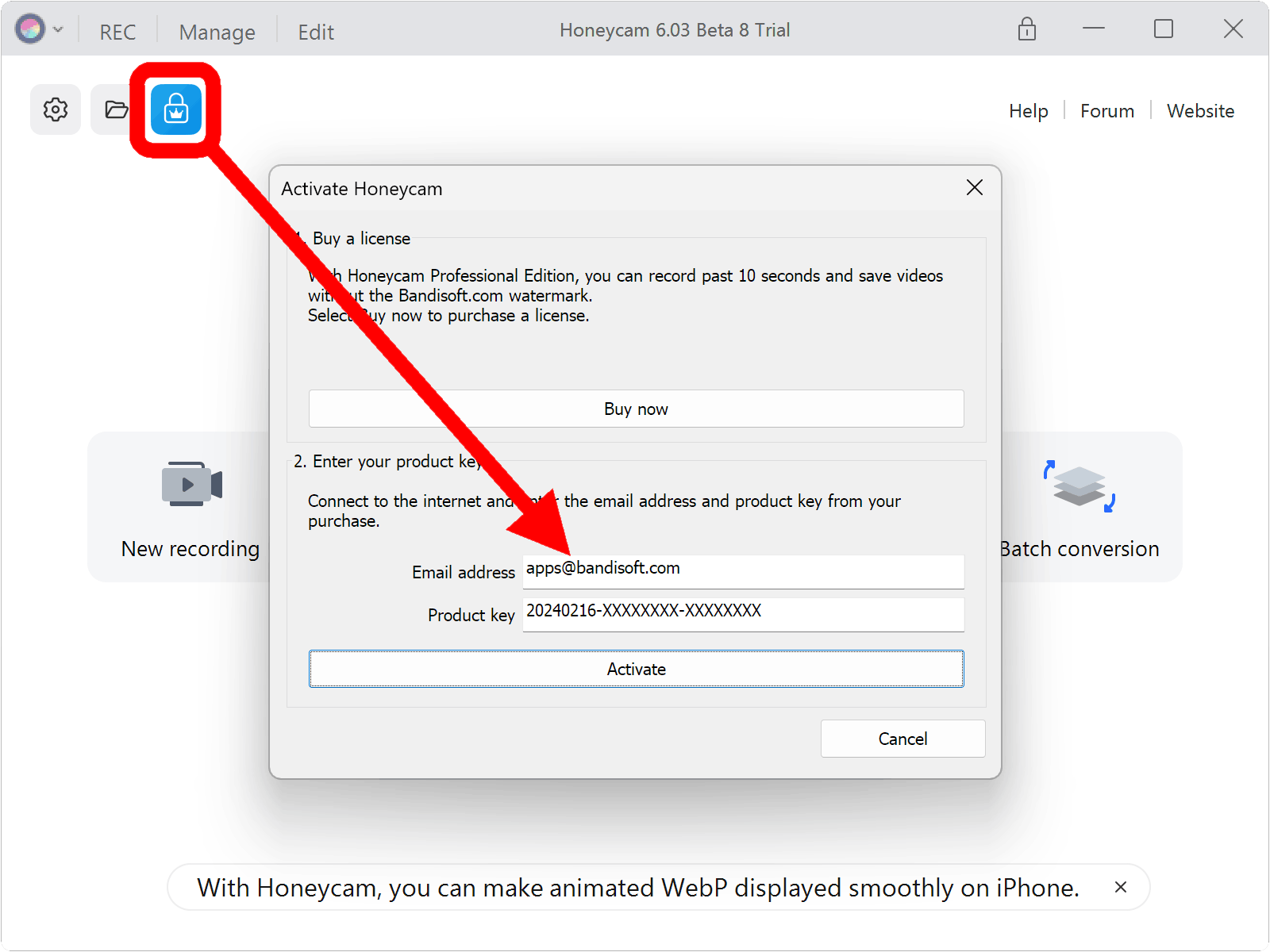
If you purchased a Honeycam Professional Edition license, enter the product key you received by email as shown in the screenshot to register Honeycam.
Haven't purchased Honeycam yet?
Buy nowRegister during installation
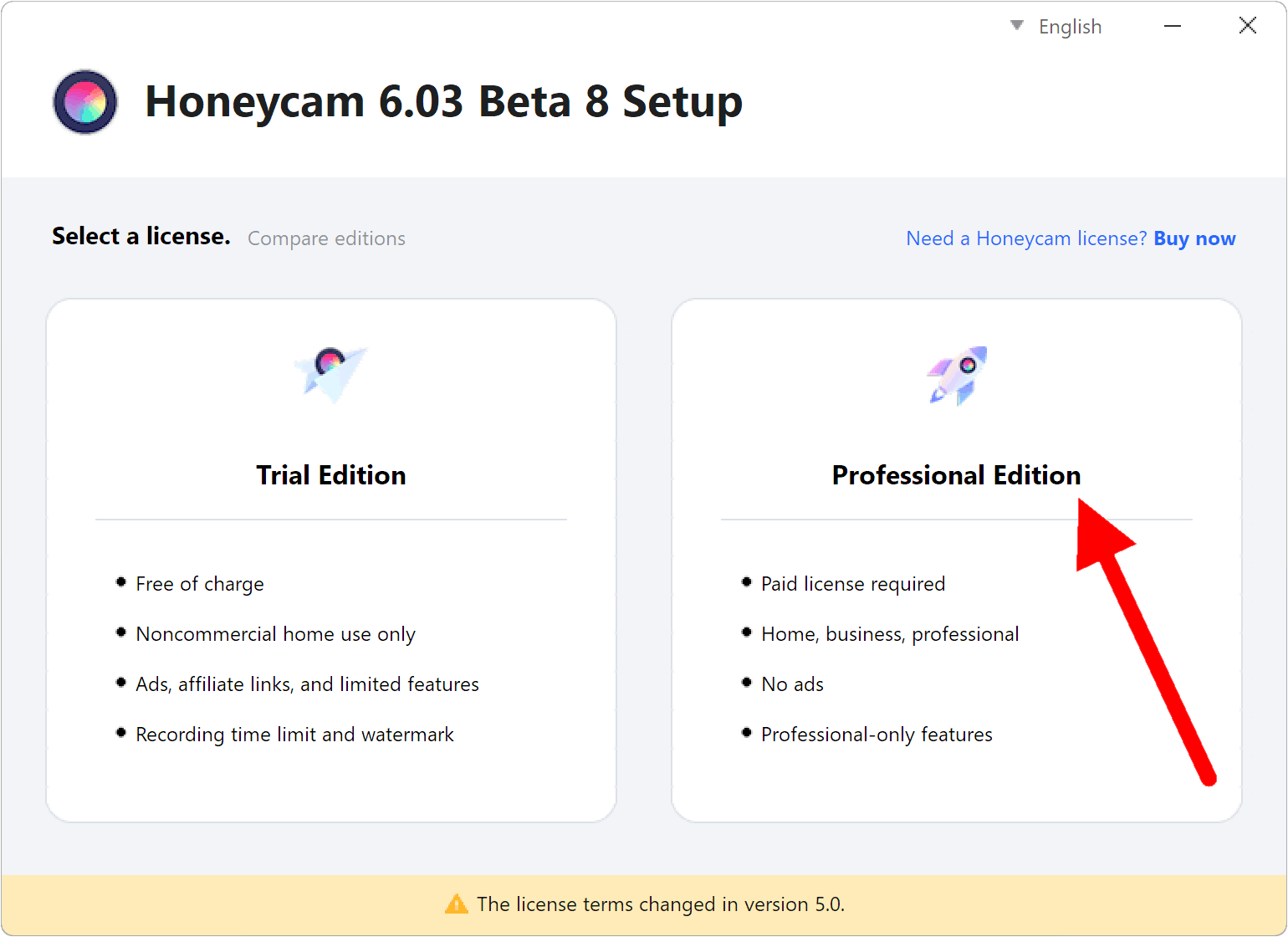
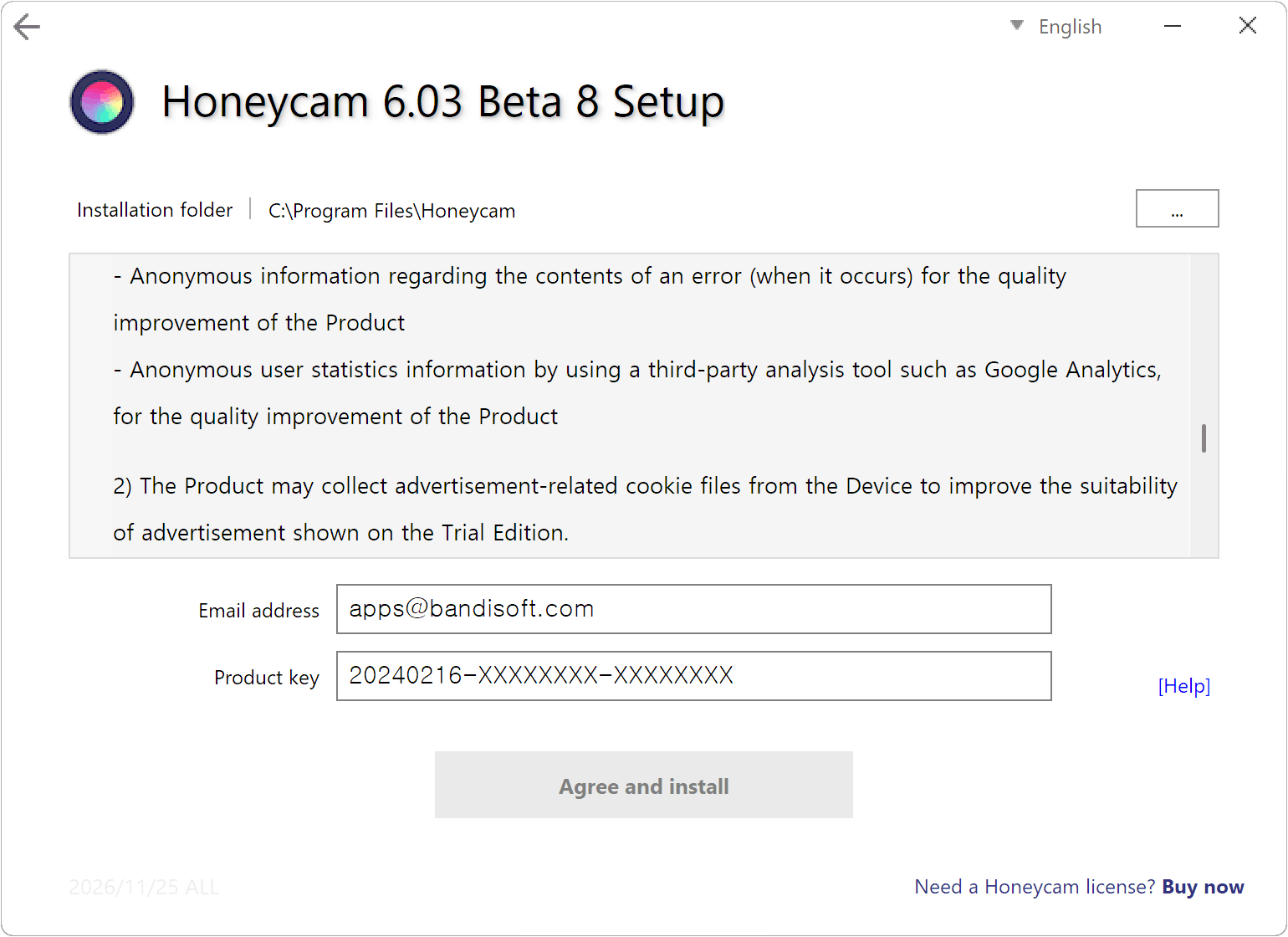
Run the Honeycam installer and select "Professional Edition". On the next screen, enter your email address and product key.
Register after installing the trial version
Open Honeycam and click the blue padlock button in the upper left. Enter the email address you used for your purchase and your product key, then click Activate.